Hospital EMR · Android · Queue

MediConsult AI & Alocare Queue

Two connected hospital products: MediConsult AI for doctors and nurses on Android tablets, and Alocare Queue for waiting-room display boards, patient kiosks, and staff call consoles—both backed by the same worklist in alocare-api.

MediConsult AI is in internal pilot. New in this build: structured SOAP consultations with AI suggestions and voice dictation, plus unified med/lab/radiology orders with allergy alerts, stock-aware Rx recommendations, and Add Radiology Order from your hospital's radiology master catalog. Alocare Queue runs at queue.alocare.net for live TV boards, kiosk registration, and voice announcements when staff call patients.

Live at queue.alocare.net

SOAP + AI

Structured consultation notes with ICD-10, allergy alerts, AI suggestions, and voice dictation.

Med/Lab/Rad orders

Medications, labs, and radiology in one screen—hospital radiology catalog, stock status, urgent flags, and AI Rx recommendations.

Waiting-room queue

Kiosk registration, TV display with SSE + voice, and staff Call console.

One API backend

Shared api_worklist_items table—queue UI, admin admissions, and EMR tablet.

Pilot test playbook

End-to-end hospital workflow — how to test

Walk through the full pilot in order: install the latest APK, run Alocare Queue from kiosk to staff call, then document the visit on MediConsult AI. Every step below includes screenshots from production UI and screen recordings from the latest build (2026.06.16).

Phase 1

Install MediConsult AI on your tablet

Download the latest debug APK on an Android phone or tablet used in the pilot. You need a pilot account before continuing—request one from the Alocare admin team if you do not have credentials yet.

Phase 1 · Step 1

Download the APK

Use the download button at the top of this page or in the Download section below. The file is ~77 MB and is served from alocare.net (build 2026.06.16).

  • Open the link on the Android device, or transfer the APK from a computer via USB / cloud drive
  • Package: net.alocare.emr · signed debug certificate
  • Not available on Google Play—sideload install only

Phase 1 · Step 2

Install and launch

Allow installation from your browser or Files app when Android prompts. If you see an “unknown app” warning, choose Install anyway—this is expected for pilot debug builds.

  • After install, open MediConsult AI from the app drawer
  • Confirm the version in Settings → About matches build 2026.06.16 before testing
  • Keep Wi-Fi on—the app calls alocare-api for auth, worklist, and consultations

Phase 2

Alocare Queue — patient registration to staff call

Test the waiting-room flow at queue.alocare.net before opening the EMR tablet. Queue persistence and SSE live in alocare-api; the queue website is the kiosk, TV display, and staff console frontend.

Phase 2 · Step 1

Open the queue service

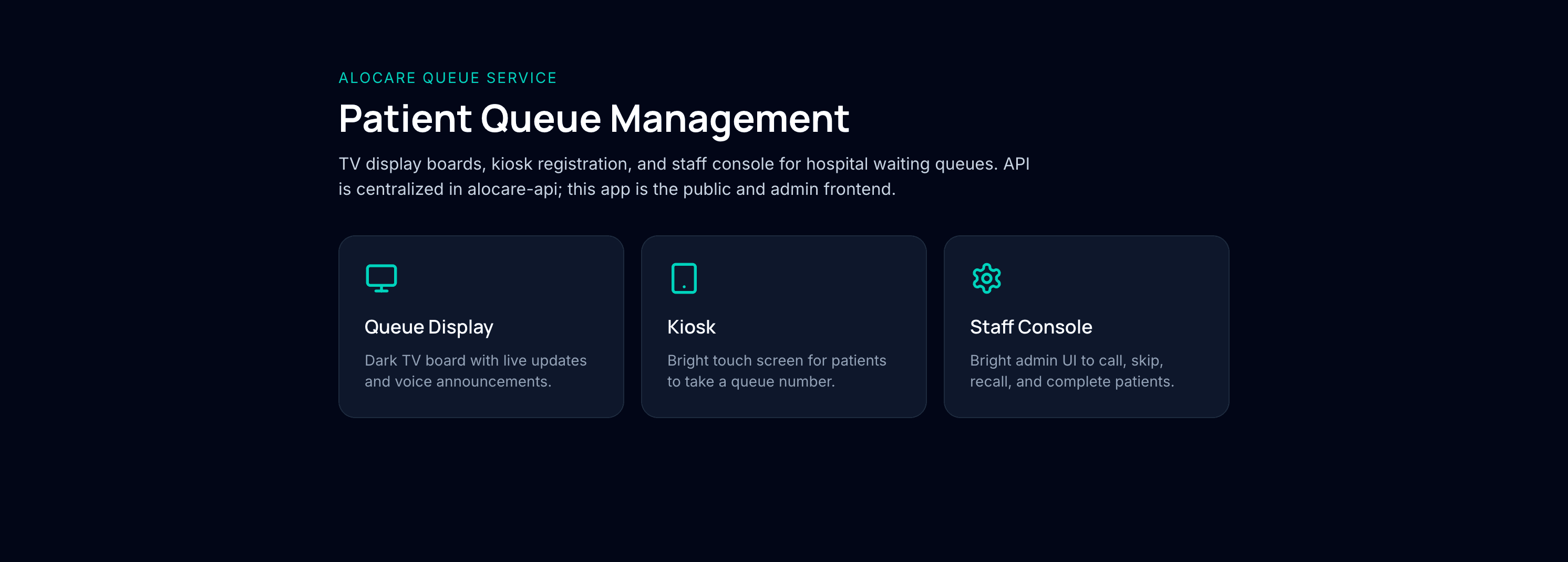
Start at the queue home page. From here you can open the TV display board, patient kiosk, and staff call console in separate browser tabs or devices.

Phase 2 · Step 2

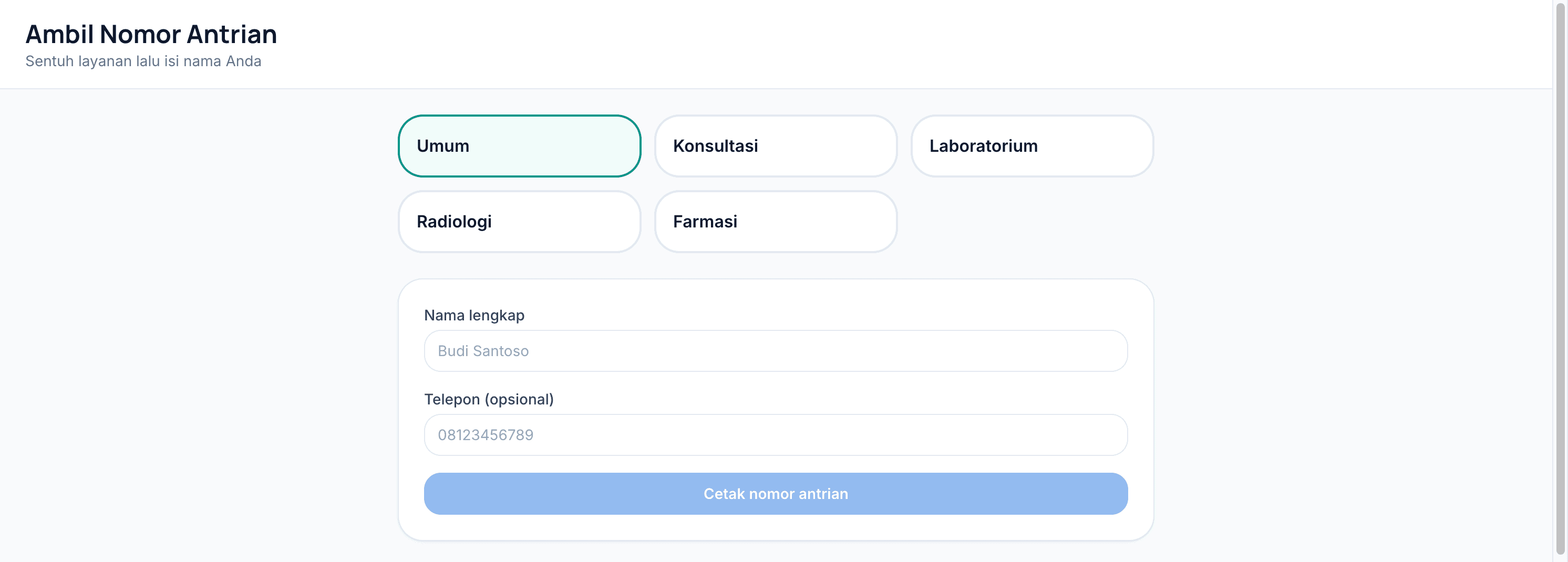
Patient takes a queue number at the kiosk

On a touch screen (or browser window), open the kiosk. The patient selects a service type—General, Consultation, Lab, Radiology, or Pharmacy—and enters their name to receive a ticket such as A-023.

  • Kiosk → POST /queue/kiosk/ticket (public, no login required)
  • Alternative: staff admit via Admin app or POST /queue/admit in the console
  • Watch the screen recording below for the full kiosk → ticket flow

Phase 2 · Step 3

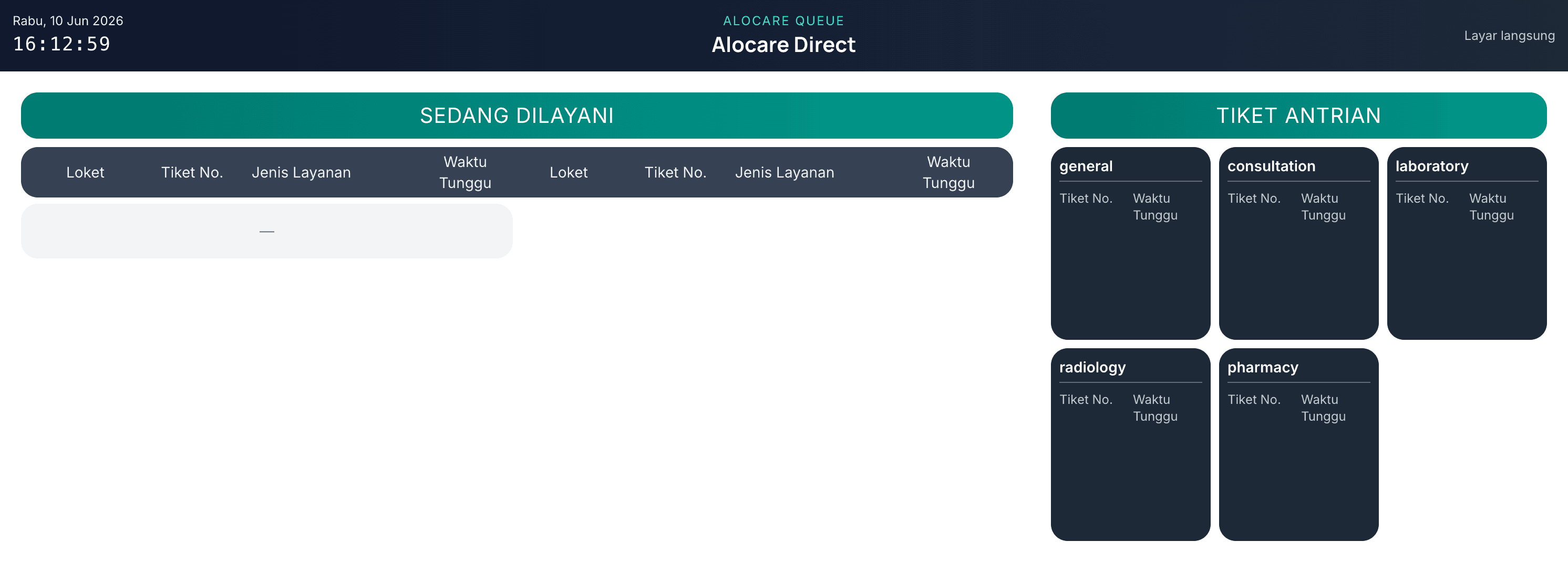
TV display shows waiting and called patients

Open the dark TV board on a large screen. It polls the API and subscribes to SSE for instant updates. Waiting tickets are grouped by service type; the “being served” panel shows counter, ticket number, and elapsed time.

  • Display → GET /queue/display + GET /queue/events/stream
  • Tap the screen once to unlock browser speech for Indonesian TTS announcements
  • Verify the kiosk ticket appears in the waiting panel within a few seconds

Phase 2 · Step 4

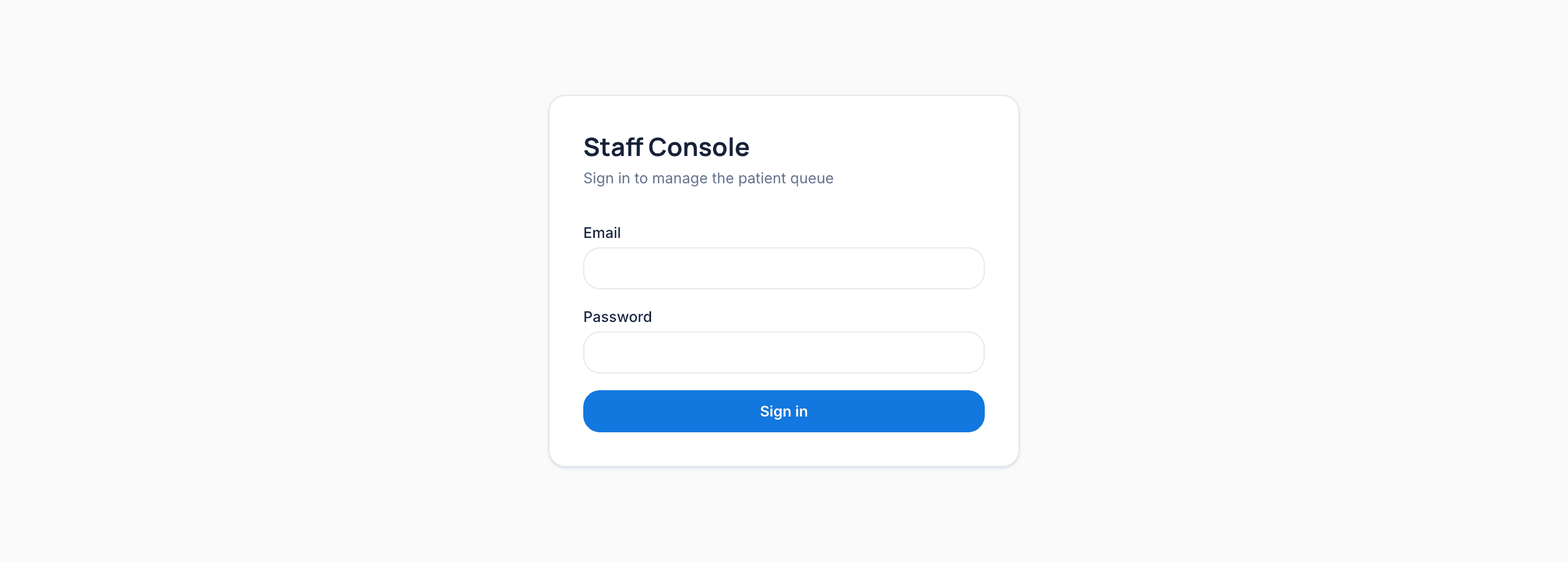
Staff signs in to the call console

Reception or nurses open the staff console and sign in with a queue-service account. After login you see the worklist table with counter name, status filters, and per-row actions.

  • Staff console → /admin after login
  • Set your counter name (e.g. Room 1) before calling patients
  • Status filters: Pending, Calling, In progress, Completed, Skipped

Phase 2 · Step 5

Staff calls the patient

Select the patient row and click Call. The API sets status to calling, pushes an SSE event to the TV display, speaks the queue number aloud, and optionally fires patient.called webhooks to hospital systems.

  • POST /queue/{id}/call → status calling · TV announcement + TTS
  • Follow-up actions: Start, Recall, Skip, Complete
  • Queue Call (staff console) ≠ EMR Call → on the tablet—same patient row, different action

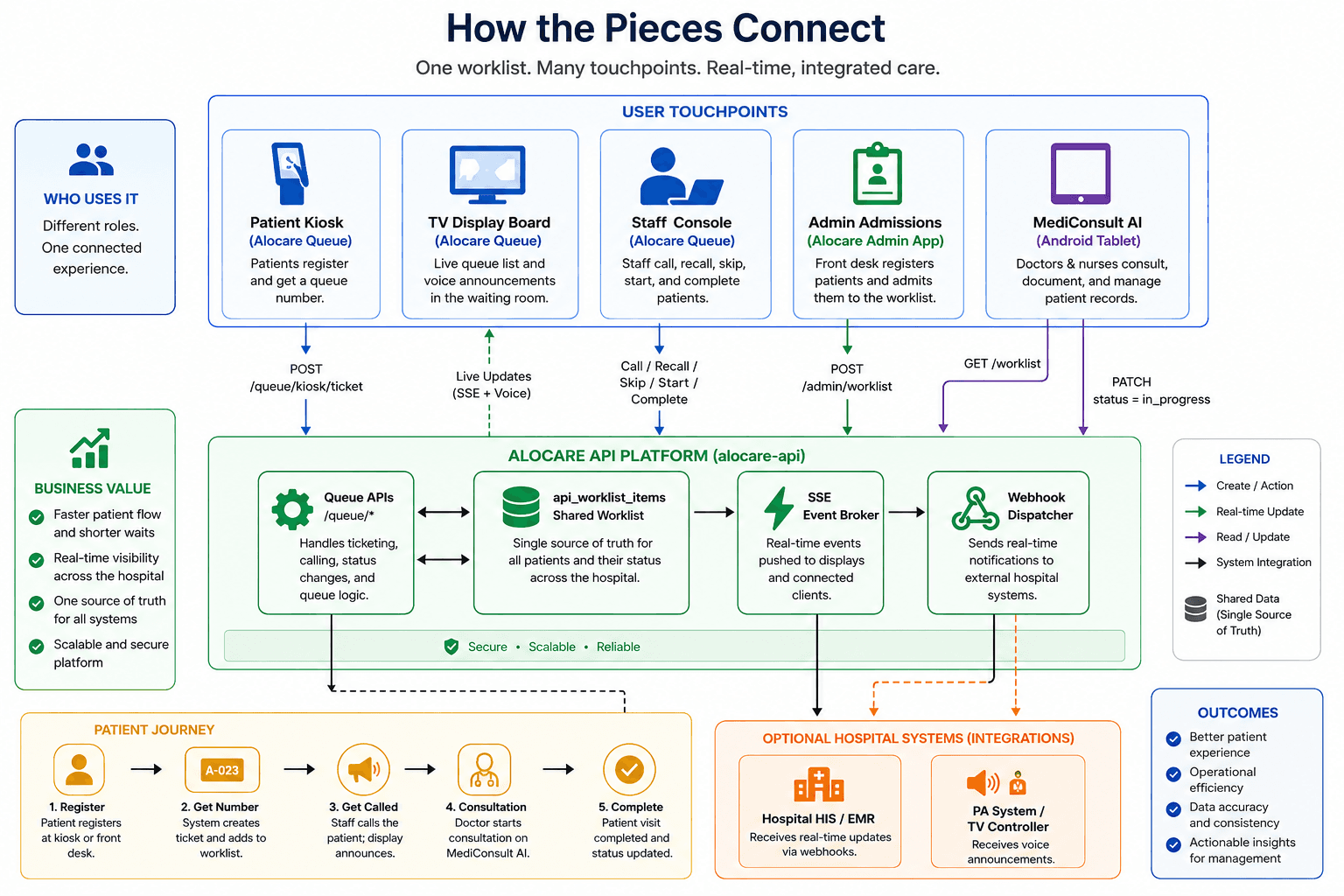
How the pieces connect

One worklist. Many touchpoints. Real-time, integrated care.

Architecture diagram: patient kiosk, TV display, staff console, admin admissions, and MediConsult AI tablet all connect to the Alocare API shared worklist

Patients register at the kiosk or front desk and receive a queue number. The TV display shows who is waiting and who is being called—with live updates and voice announcements when staff press Call.

Staff manage the queue from the web console. Front-desk teams admit patients through the Admin app. Doctors and nurses open the same patient on MediConsult AI tablets when consultation begins.

The Alocare API platform holds one shared worklist for every touchpoint—secure, scalable, and reliable. Optional webhooks can notify your hospital HIS/EMR or PA system for deeper integration.

Phase 3

MediConsult AI — sign in through consultation

On the Android tablet, complete the clinical workflow for the patient called from queue. Worklist rows sync via GET /worklist; tapping Call → starts the consultation (PATCH status → in_progress).

Phase 3 · Step 1

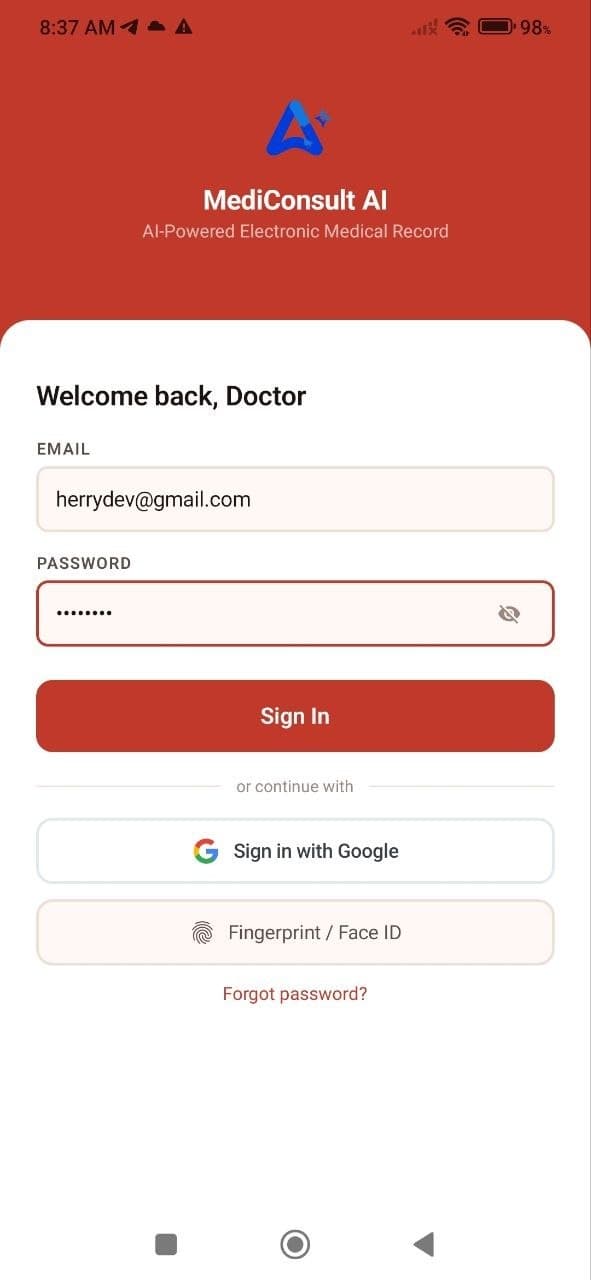
Sign in to MediConsult AI

Open the app and sign in as a doctor or nurse with your pilot account. Email + password is the primary method; Google Sign-In works only after linking Google in the clinician portal Settings.

  • Fingerprint / Face ID — optional after Authentication setup in Settings
  • Forgot password? — self-service reset if enabled for your account
  • Pilot note: worklist patients are hardcoded in this debug build—not live hospital ADT yet
MediConsult AI login screen with email, Google, and biometric options

Phase 3 · Step 2

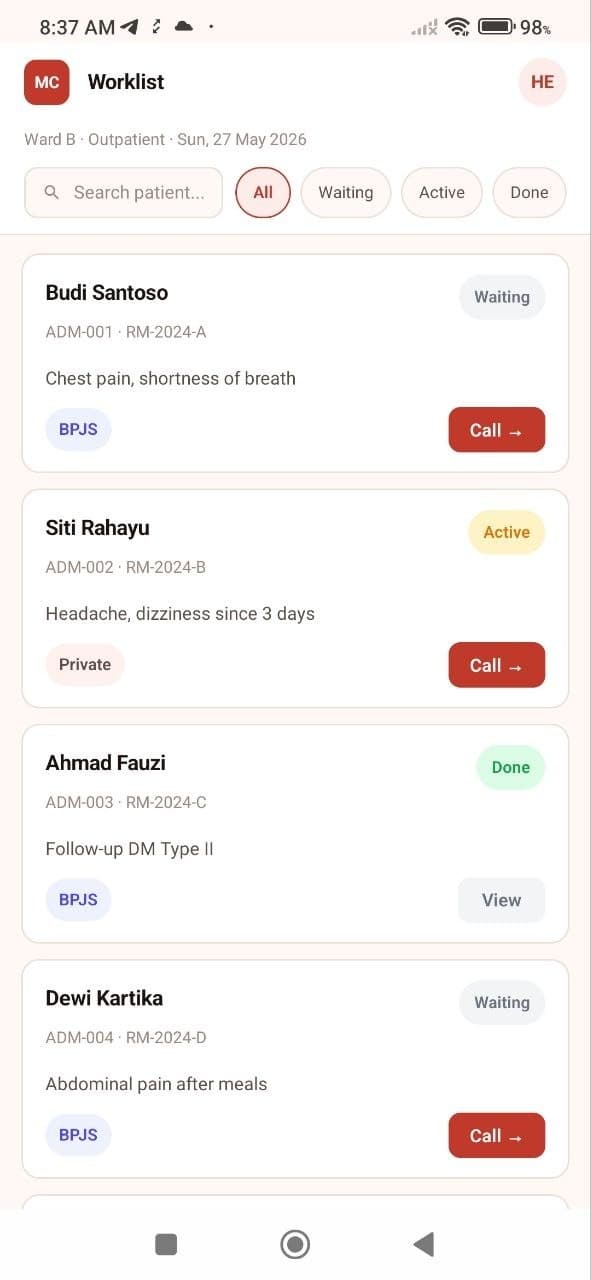
Find the patient on the worklist

After sign-in you land on Worklist. Search and filter by All, Waiting, Active, or Done. Each card shows patient name, admission/MR IDs, chief complaint, and insurance (BPJS / Private).

  • Header shows ward, clinic type, and date (e.g. Ward B · Outpatient)
  • Tap Call → on the patient called from queue to open Consultation
  • Tap your avatar (top right) to open Settings at any time
MediConsult AI worklist with patient cards and status filters

Phase 3 · Step 3

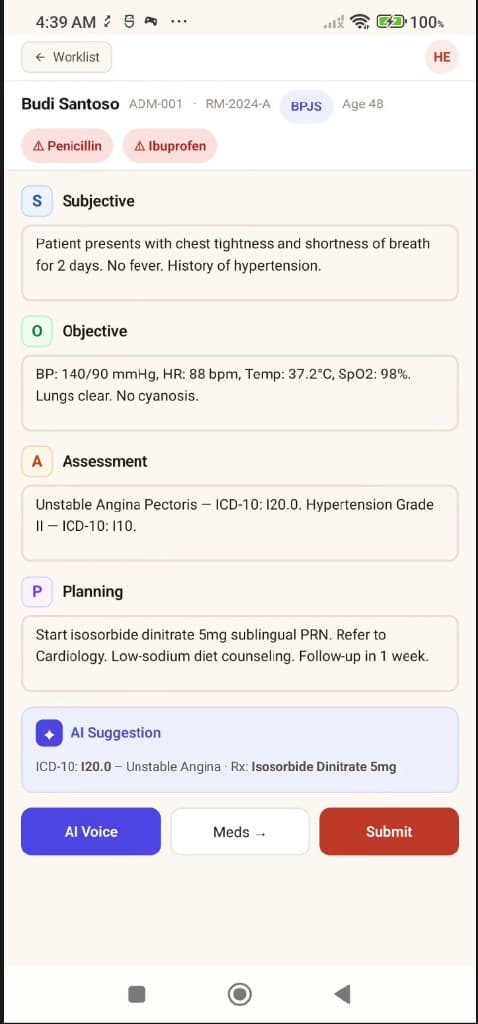
Document the consultation (SOAP)

Capture subjective, objective, assessment, and plan in structured SOAP cards. Patient allergies, insurance, and admission IDs stay visible at the top for safety.

  • Color-coded S/O/A/P sections · allergy badges (e.g. Penicillin, Ibuprofen)
  • Assessment supports ICD-10 inline (e.g. I20.0 Unstable Angina)
  • AI Suggestion bar proposes ICD-10 and Rx—review before accepting
  • AI Voice for hands-free dictation · Meds → opens Orders · Submit finalizes the visit
MediConsult AI consultation screen with SOAP notes, allergy alerts, and AI suggestion

Phase 3 · Step 4

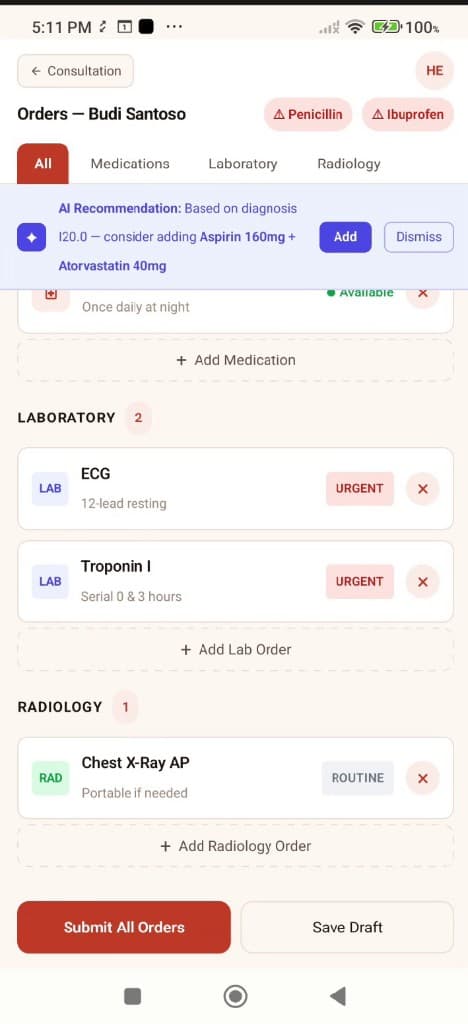
Place med/lab/radiology orders

From Consultation tap Meds → to open Orders. Add medications, laboratory tests, and radiology studies—with AI recommendations, stock status, urgent flags, and a searchable hospital radiology catalog.

  • Tabs: All, Medications, Laboratory, Radiology
  • AI Recommendation banner · medication stock: Available / Limited
  • Lab URGENT priority (e.g. ECG, Troponin I serial)
  • + Add Radiology Order from hospital catalog · Submit All Orders or Save Draft
MediConsult AI orders screen with medications, urgent lab tests, Chest X-Ray radiology order, and Add Radiology Order

Phase 3 · Step 5

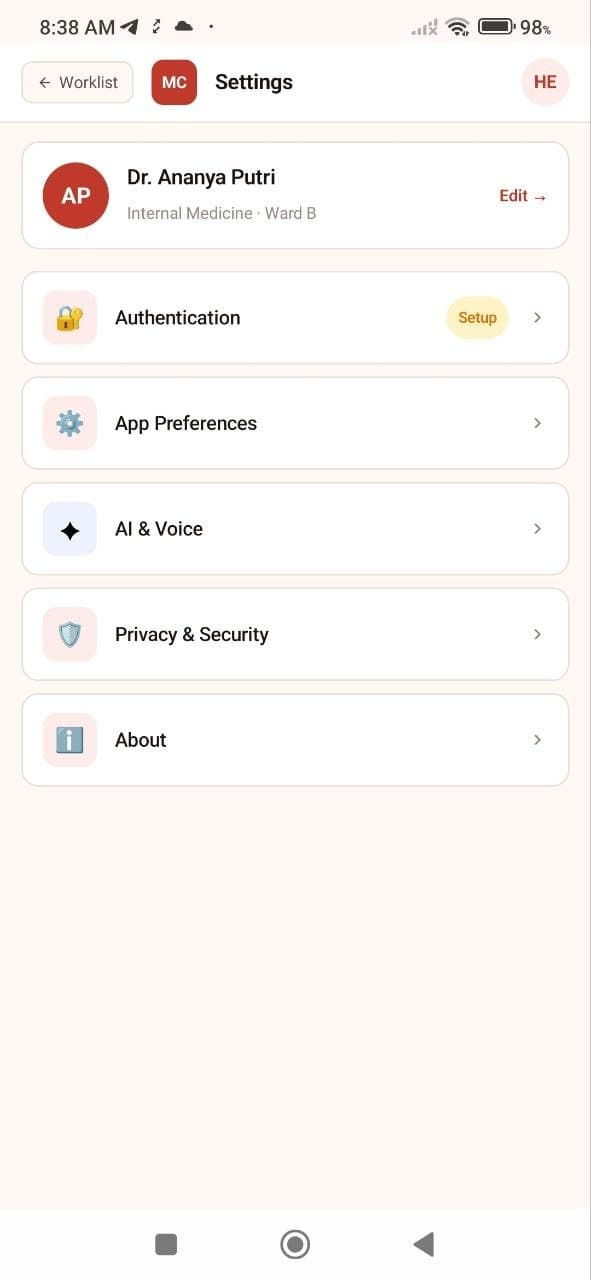
Review Settings (optional)

From Worklist tap your avatar to open Settings. Configure biometrics, language, AI & Voice modules, and review Privacy & Security options.

  • Profile card — name, specialty, ward
  • Authentication — biometric sign-in setup
  • About — app version, support links, Sign Out
MediConsult AI settings screen with profile and menu options

Phase 3 · Step 6

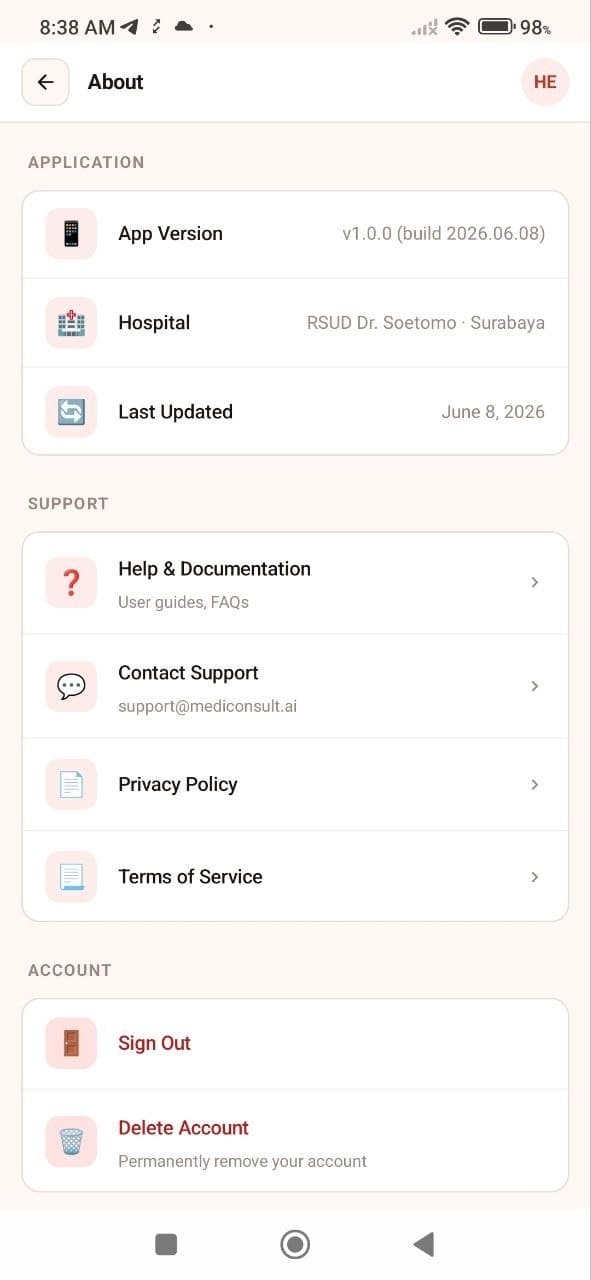
Sign out at end of shift

Settings → About → Sign Out clears on-device tokens and invalidates your server session. Always sign out on shared ward tablets.

  • About shows app version (v1.0.0) and build date—include in bug reports
  • Delete Account is restricted in pilot builds
MediConsult AI About screen with Sign Out option

Screen recordings

Latest build walkthrough videos

Two recordings from the 2026.06.16 pilot build—queue kiosk through staff call, and EMR worklist through SOAP consultation and orders.

Alocare Queue — kiosk to staff call

Patient selects a service at the kiosk, receives a ticket, the TV display updates, and staff call the patient from the web console with voice announcement.

MediConsult AI — worklist to SOAP & orders

Doctor signs in, opens the worklist, starts a consultation with SOAP notes and AI suggestions, then places medication, lab, and radiology orders.

Download & install

Internal debug build for Alocare pilot testers. Install on any Android phone or tablet—no Google Play required.

Version
v1.0.0 (build 2026.06.17)
Download size
~79 MB
  1. Open the download link on your Android device (or transfer the APK from a computer).
  2. When prompted, allow installation from your browser or Files app.
  3. If Android warns the app is unknown, choose Install anyway—this is a signed debug build.
  4. Launch MediConsult AI and sign in with your pilot account.

Debug build for the Alocare pilot group only. Do not share outside the team. Not distributed via Google Play.

Pilot test checklist

Use this list when validating a full test session. Check each item and report failures with a screenshot plus the app version from Settings → About.

  • APK installs on Android tablet without errors (build 2026.06.16)
  • MediConsult AI sign-in succeeds with pilot email + password
  • Worklist loads and shows patient cards with Waiting / Active / Done filters
  • Kiosk at queue.alocare.net/kiosk issues a ticket number
  • TV display at /display shows the new ticket in the waiting panel
  • Staff console login works; Call updates the TV board and plays TTS
  • Same patient row is visible on the EMR tablet worklist
  • Call → on tablet opens Consultation with allergy badges visible
  • SOAP sections accept text; AI Suggestion bar appears and can be reviewed
  • Meds → opens Orders with Medications, Laboratory, and Radiology tabs
  • + Add Radiology Order searches the hospital catalog
  • Submit / Submit All Orders completes without error
  • Settings → About → Sign Out clears the session

Pilot build notes

  • Worklist patients are hardcoded in this debug build—not live hospital ADT yet.
  • Use pilot accounts provisioned by the Alocare admin team.
  • Google Sign-In works only after linking Google in the patient/clinician portal Settings.
  • Report issues to the Alocare team with a screenshot and your app version from About.

Need help?

For pilot support, documentation questions, or access issues, send us a message through the contact form.

Open contact form

← Back to Alocare home